 khata.tech
 Inventory
Last updated August 6, 2026
Inventory is where you catalog what you sell and track how much of it you have on hand. Start here before Sales or Purchases — you can't add a product to an order until it exists in your catalog.
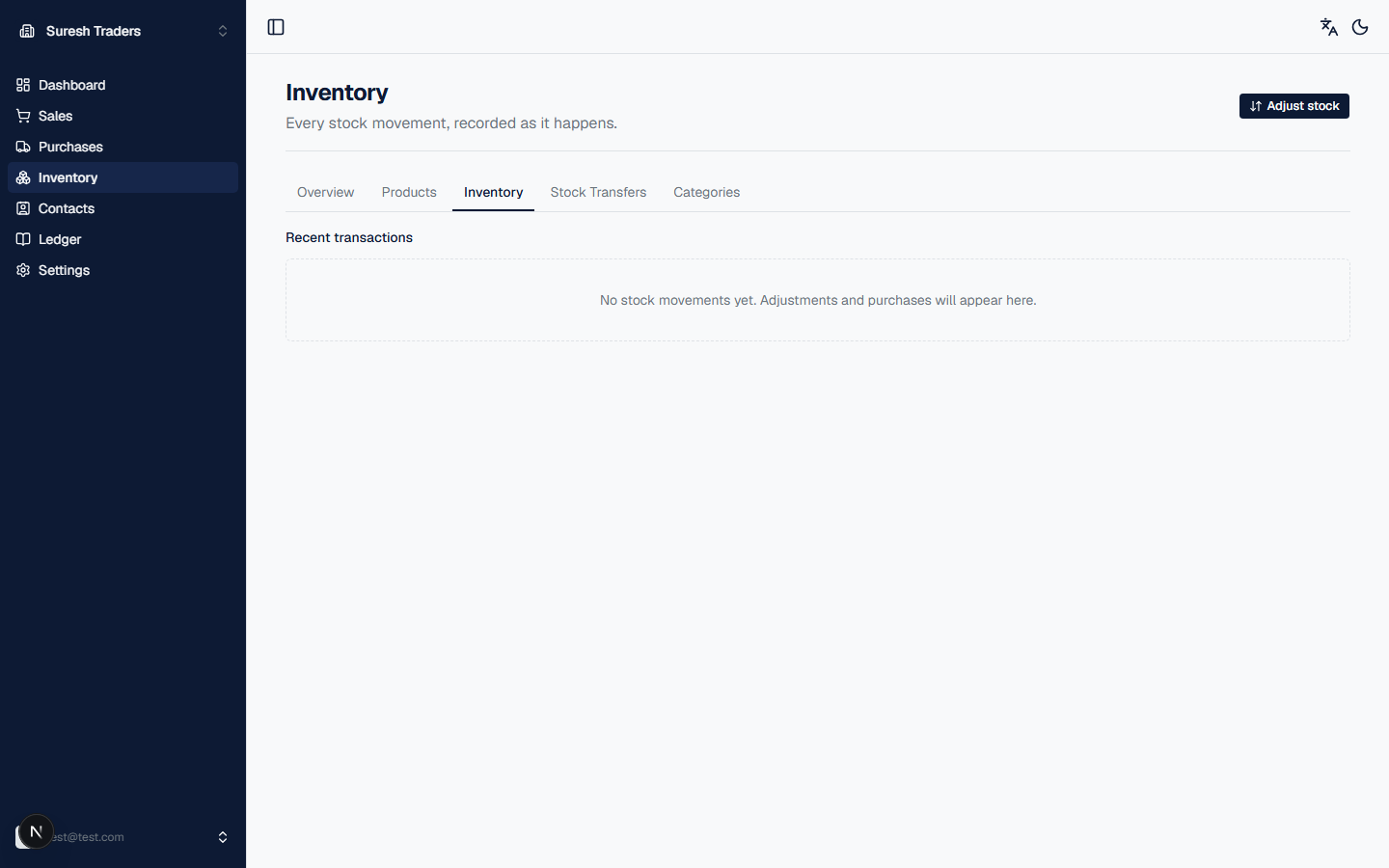
The section has five tabs: Overview, Products, Inventory, Stock Transfers, and Categories.
Step 1: Add your first product
- Click the Products tab.
- Click New product (top right).
- Fill in the form:
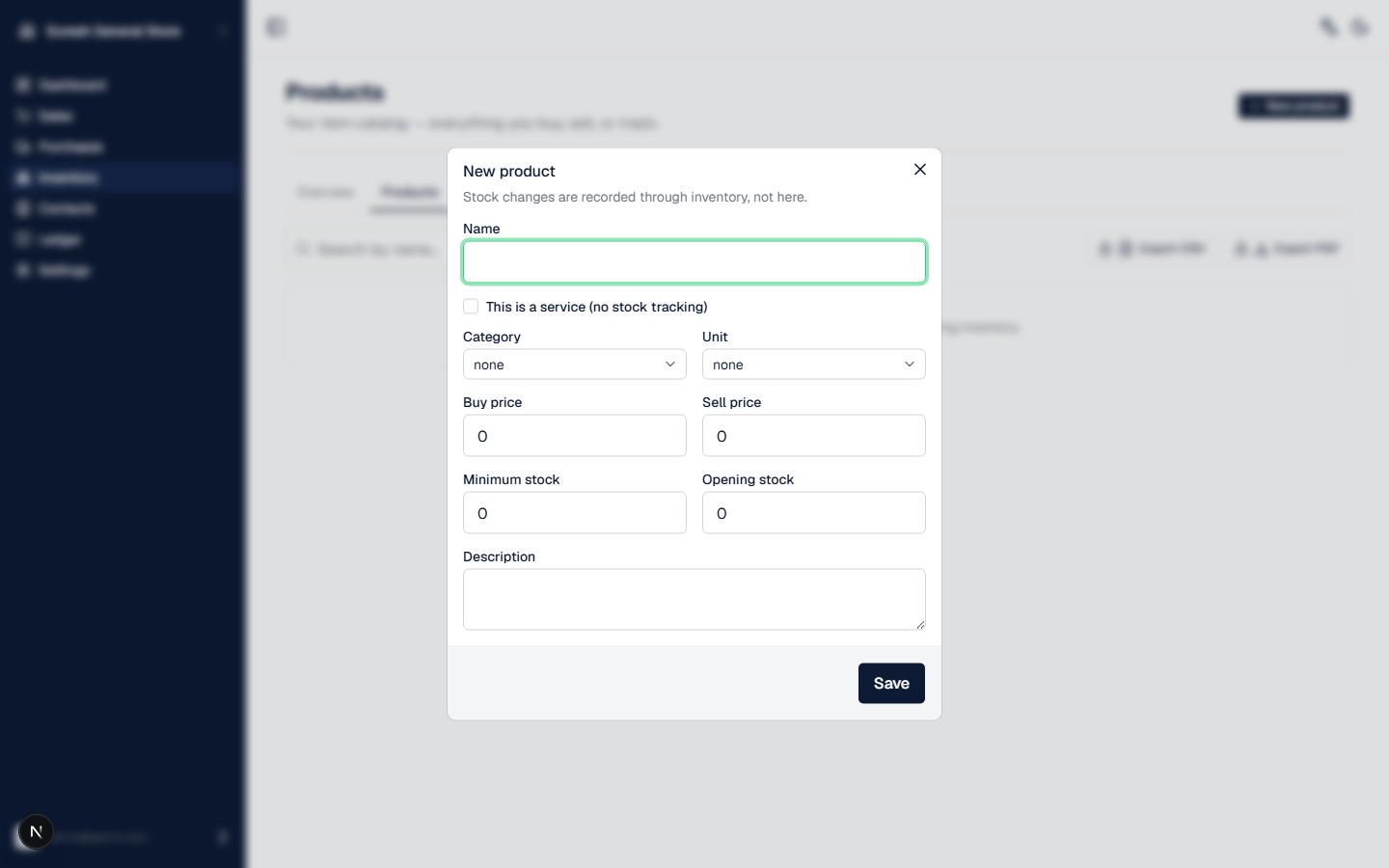
- Name — required. What you'll search for when adding it to an order.
- This is a service — tick this for something you sell that has no stock to track (a repair fee, a delivery charge). Leave it unticked for a physical item.
- Category and Unit — optional, but worth setting if you're adding more than a handful of products (see Categories below).
- Buy price and Sell price — your cost and your selling price.
- Minimum stock — set this and khata.tech will flag the product under Low stock on your dashboard once it drops below this number.
- Opening stock — if you already have some of this product on the shelf, enter how many. This is the only place to set a starting stock count for a brand-new product.
- Click Save.
Repeat for every product you sell. You don't need to add your whole catalog on day one — add a few now, add the rest as you go.
Step 2: Check your stock levels
Click the Inventory tab. This shows current stock per product, and below it, a log of every stock movement — every purchase, sale, and adjustment that touched inventory, most recent first. If a number here looks wrong, this log is where you trace why.
Step 3: Adjust stock by hand
Purchases and sales change stock automatically. For everything else — a damaged-goods write-off, a stock-take correction, or adding stock for a product you forgot to set an opening balance for — use Adjust stock.
- From the Inventory tab, click Adjust stock (top right).
- Pick the product you're adjusting.
- Pick a type —
adjustment,damage, or similar, describing why. - Pick a direction — in (adding stock) or out (removing it).
- Enter the quantity and, optionally, a note explaining what happened.
- Click Record.
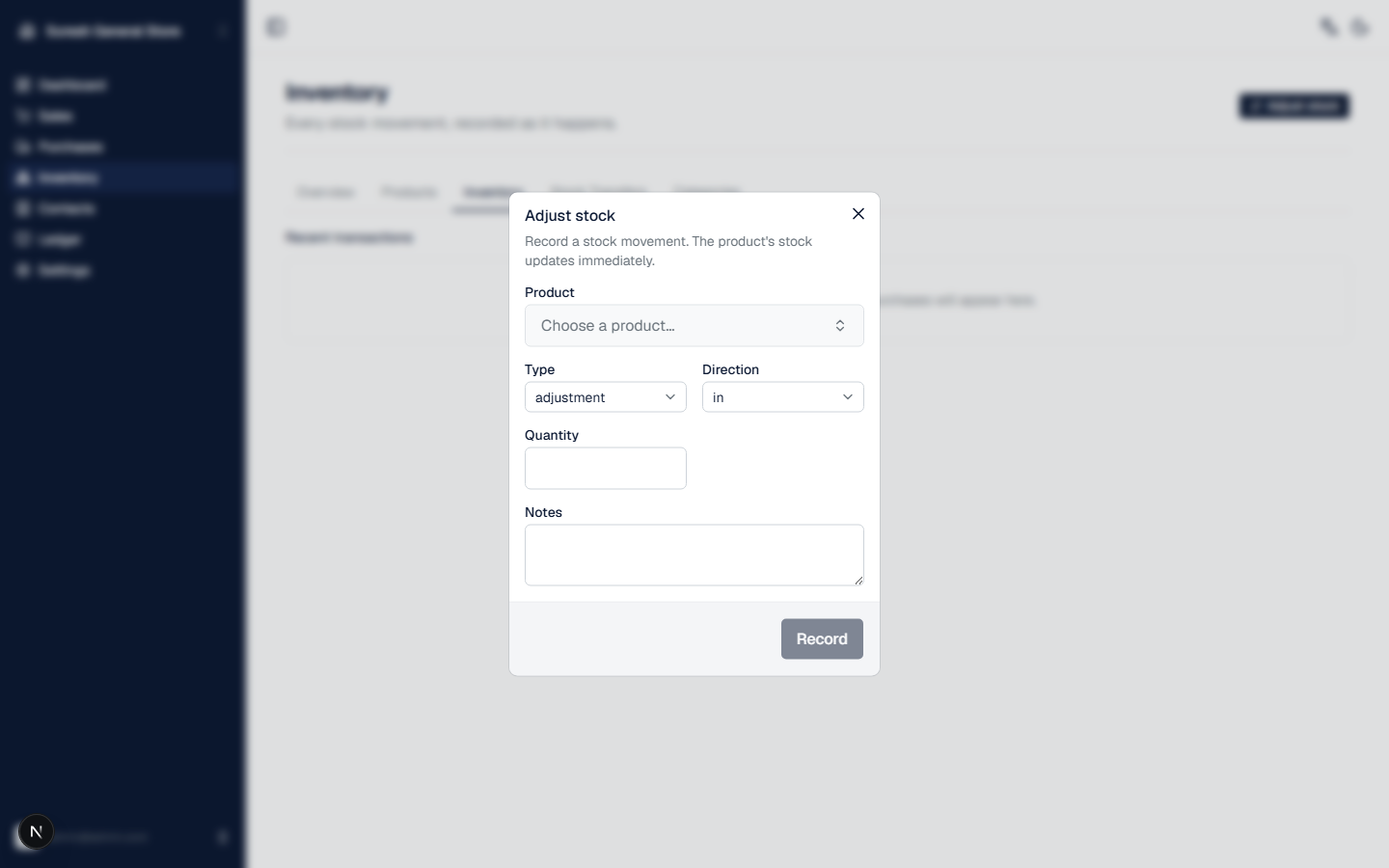
Stock updates immediately — no confirmation step, no delay.
One guardrail worth knowing: khata.tech won't let you record an adjustment (or confirm a sale) that would take a product below zero on hand. If you hit that wall, double-check your current stock count on the Inventory tab before assuming something's a bug.
Moving stock between warehouses
If you track more than one location, use Stock Transfers to move stock from one to another without it looking like a sale or a loss.
- Click the Stock Transfers tab.
- Click New Transfer (top right).
- Pick a From Warehouse and a To Warehouse.
- Pick an item, set the quantity, and click Add — repeat for every item in the transfer.
- Add optional notes, then click Create Transfer.
Every transfer you create shows up in this tab's list, so it doubles as a history of what moved where and when.
Organizing with categories and units
Click the Categories tab for two things:
- Categories — click New category to add one, then assign products to it from the Products tab. Worth doing once your catalog passes a dozen or so products, to keep the list easy to scan and filter.
- Units — click New unit to define how a product is measured and
sold (e.g.
pcs,kg,box). khata.tech offers suggestions if you're not sure what to add first. Units show up in the Unit dropdown when adding a product.
What's not here yet
If you're only tracking one location, you can ignore Stock Transfers and Warehouses entirely — everything above works the same either way.