 khata.tech
 Settings
Last updated August 6, 2026
Settings covers your business profile and your own account. This is the first stop for any new workspace — the business name and logo you set here show up on every invoice and document you generate from now on, so worth doing before your first sale.
The page opens on Business, with three cards at the top linking to Appearance, Account, and Advanced.
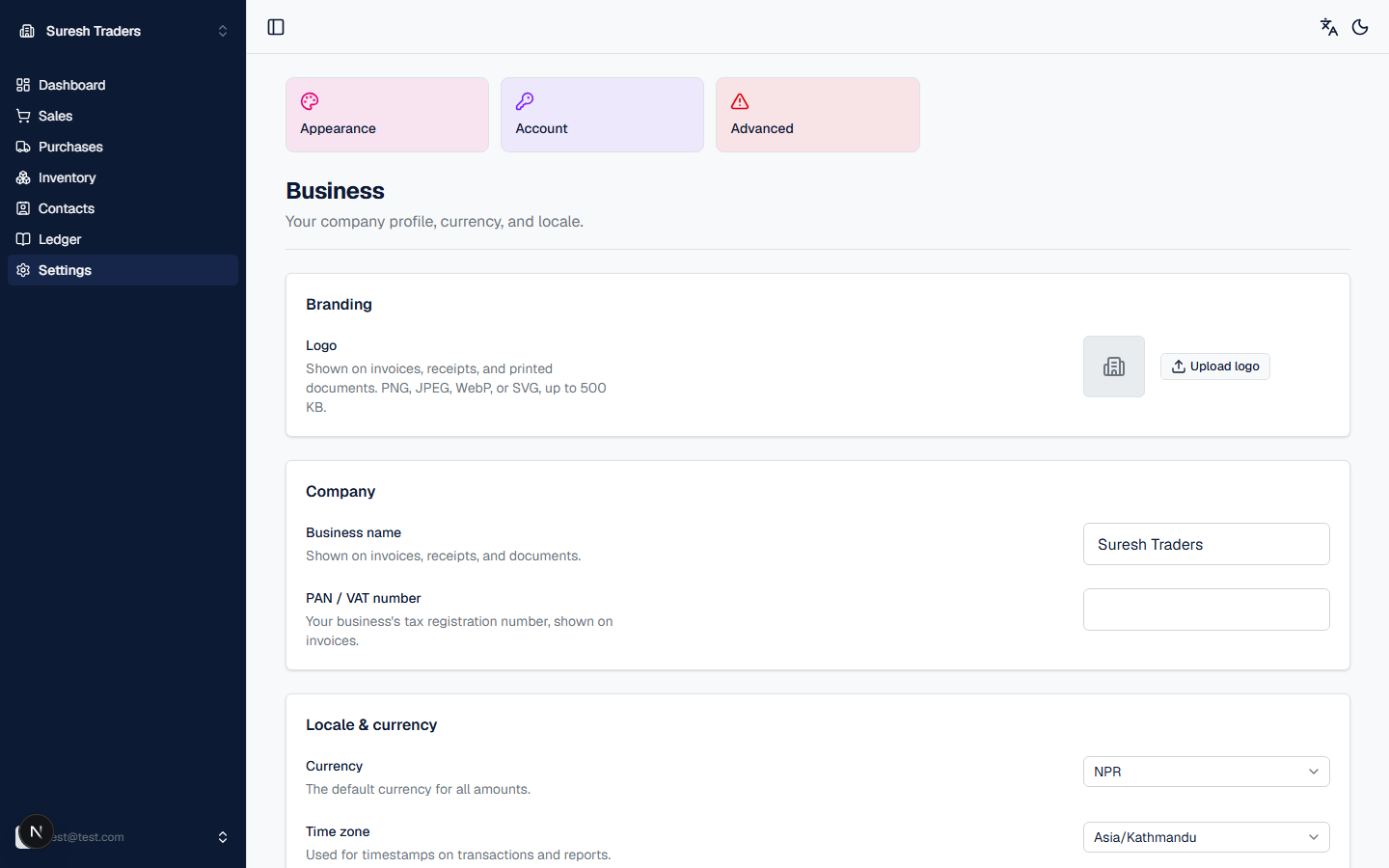
Step 1: Set up your business profile
Everything here is under the Business page, in four sections, top to bottom:
- Branding — click Upload logo. Accepts PNG, JPEG, WebP, or SVG, up to 500 KB. It shows up wherever your business is represented in the app — invoices, receipts, purchase orders, printed documents.
- Company — your business name, shown on every invoice, receipt, and document; and your PAN / VAT number, if you have one, printed on documents alongside it. The actual tax rate applied to invoices is a separate setting — see more settings, elsewhere in the app below.
- Locale & currency — four settings that apply workspace-wide, not
per-user, so get these right before you start logging transactions:
- Currency — defaults to NPR.
- Time zone — defaults to Asia/Kathmandu. Used for every timestamp on transactions and reports.
- Fiscal year — when your accounting year begins (e.g.
07-16for a mid-July start). - Language — the default language for this workspace.
- Company identity — optional contact details shown on invoices and documents: address, phone, email, and website.
Step 2: Check your account details
Click the Account card. You'll find password fields here — current password, new password, confirm password — to update your login. There's no email-change field on this page; your sign-in email is fixed once the account is created.
Optional: Switch theme
Click the Appearance card to toggle light/dark theme for your own session. This is a personal preference — it doesn't affect what other users on your workspace see. You can also flip it any time from the moon icon in the top-right corner of any page.
Advanced: permanently deleting data
Click the Advanced card. This is a danger zone, visible only to the organization owner — everything here is permanent and cannot be undone:
- Delete a sale — look up an order by its order number (e.g.
SO-00001) and permanently delete it. - Delete a product — look up a product by name and permanently delete it.
Don't use this to "undo" a mistake you can fix another way — a wrong order is usually better cancelled or corrected with a stock adjustment (see Inventory) than deleted outright, since deletion removes the record entirely rather than leaving a trail.
More settings, elsewhere in the app
Only Appearance, Account, and Advanced (owner-only) show up as cards on the Business page — but those aren't the only settings in khata.tech. A few more live inside the section they affect, not under Settings at all:
- Inventory has its own settings for Units, Categories, and Warehouses — see Inventory.
- Sales has a default tax rate, applied to new invoices and purchase bills. Nepal's standard VAT rate is 13%, shown as a hint. This is the one place khata.tech does touch VAT — see Sales for how it's actually applied at invoice time.
- Purchases has a purchase order template setting (layout used when printing or sharing), and a purchase approval toggle if you want a manager to sign off before a purchase order can be confirmed.
- Payments — which payment methods you accept (cash, bank transfer, QR payment) and a default bank account to show on invoices.
What's not here yet
There's no team-invite or role-management screen yet, and no billing or subscription page — khata.tech doesn't currently have paid plans or seat limits to manage. If you're evaluating khata.tech for a team, every logged-in user currently has the same level of access within a workspace.