 khata.tech
 Purchases
Last updated August 6, 2026
Purchases is where stock comes in — purchase orders to suppliers, and the bills that come with them. Before you start, make sure you have at least one product (Inventory) and one supplier (Contacts) set up — you'll need both to create an order.
The section has three tabs: Overview, Purchases, and Purchase Bills.
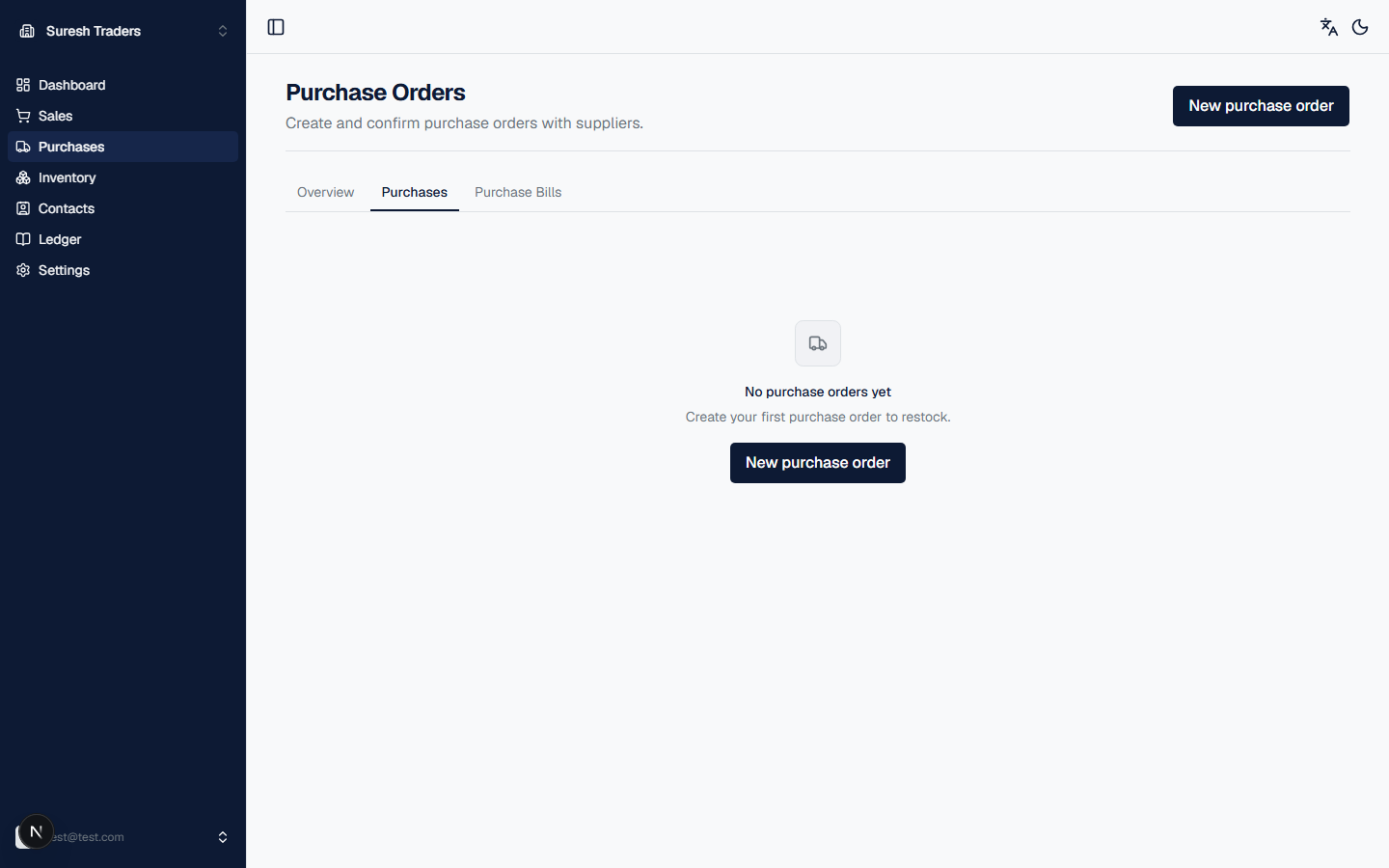
Step 1: Create a purchase order
- Click New purchase order from the Purchases page (or the dashboard's New Purchase quick action).
- Under Order details, pick a supplier — this list comes from Contacts. Not there yet? Add them first, then come back.
- Check the order date (defaults to today) and add any notes.
- Under Line items, click Add item for each product you're ordering, and set the quantity and price for each.
- Tick Mark as paid if you're settling the bill immediately — otherwise leave it unticked and record the payment later.
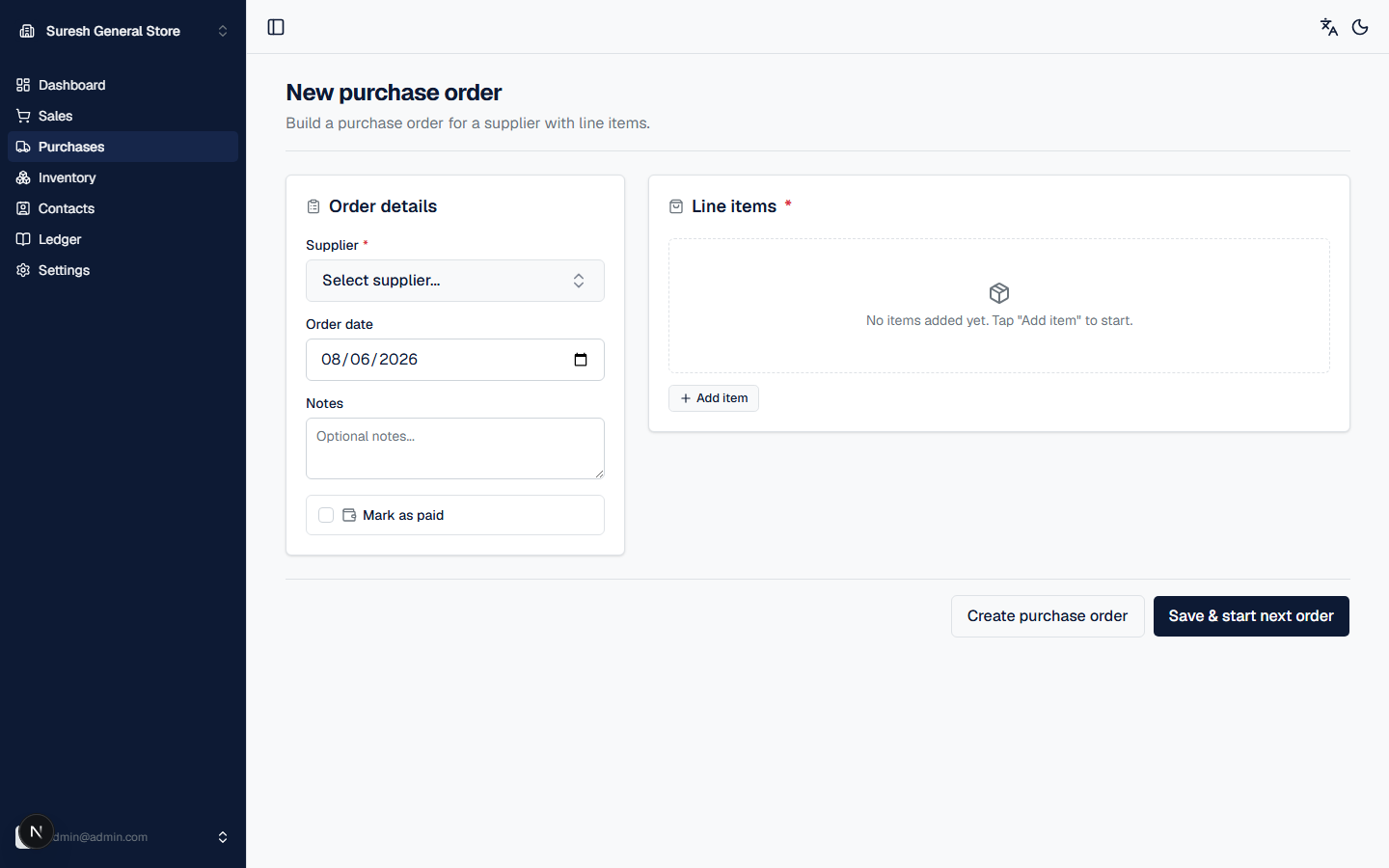
- Save it. You have two options at the bottom:
- Create purchase order — saves it. Stock isn't affected yet.
- Save & start next order — saves it and immediately opens a new blank order, handy if you're entering several supplier orders back to back.
Step 2: Confirm it
A saved purchase order doesn't touch your stock until you confirm it. Open it from the Purchases tab and confirm — this increases stock for every line item on the order. It's the mirror image of confirming a sales order, which decreases stock instead.
If your workspace has purchase approval turned on (under Settings → Purchases), confirming isn't instant — an owner or admin has to sign off first. Worth knowing before you assume a stuck order is a bug; check with whoever holds that role.
Step 3: Track what you owe
Every confirmed purchase shows up under the Purchase Bills tab, along with its payment status. This is the supplier-side counterpart to customer invoices under Sales — check here when you need to know what you still owe a supplier.
What's not here yet
There's no dedicated goods-receipt step separate from confirming the purchase order itself — confirm records the stock-in directly. If you need to track partial deliveries against a single purchase order, that's not currently supported.