 khata.tech
 Sales
Last updated August 6, 2026
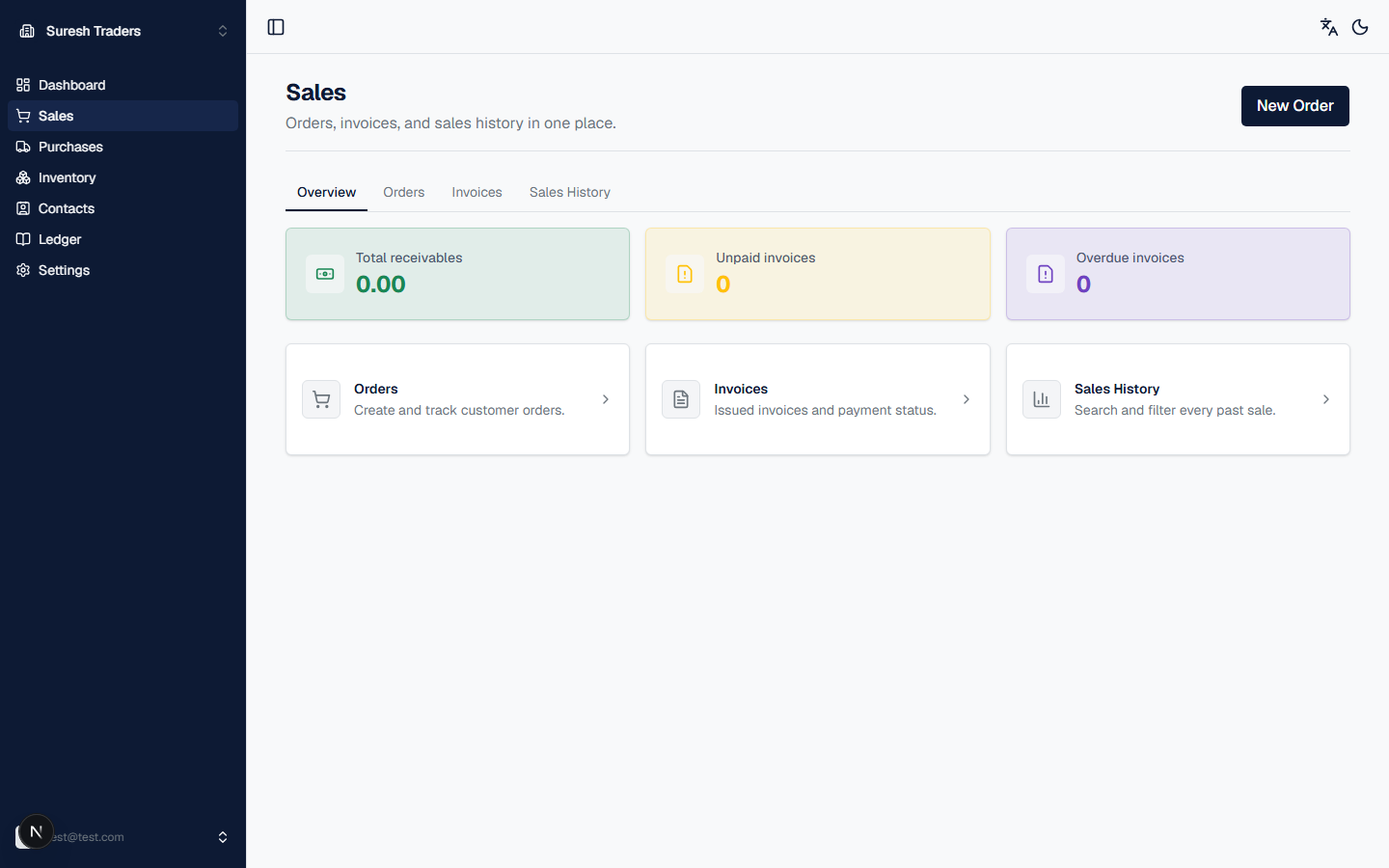
Sales covers everything from a customer order to a paid invoice. This is usually where you'll spend most of your time day-to-day. Before your first order, make sure you've got at least one product (Inventory) and one customer (Contacts) set up.
The section has four tabs: Overview, Orders, Invoices, and Sales History.
Step 1: Create an order
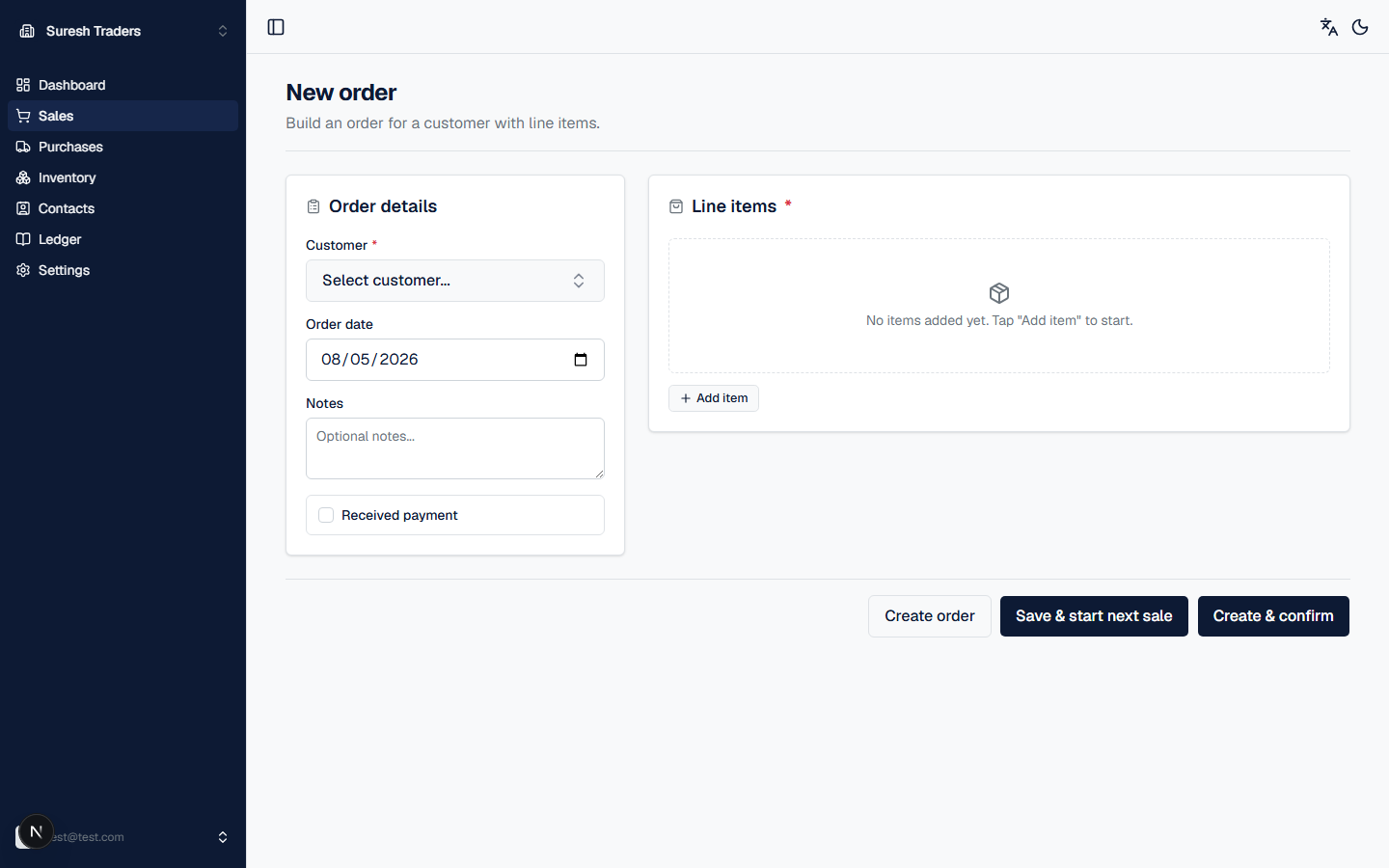
- Click New Order from the Sales page (or the dashboard's quick actions).
- Pick a customer — required, from your Contacts list.
- Check the order date (defaults to today) and add any notes.
- Click Add item for each product the customer's buying, and set quantity and price for each.
- Tick Received payment only if the customer already paid at the time of the order — leave it unticked if you're invoicing them to pay later.
Step 2: Choose how to save it
You have three buttons at the bottom — pick based on where you are in the sale:
| Button | What happens | Use it when |
|---|---|---|
| Create order | Saves as a draft. Stock is not yet affected. | You're not ready to commit the sale yet |
| Save & start next sale | Saves the draft and immediately opens a new blank order | You're at a counter with a queue of customers |
| Create & confirm | Saves and confirms in one step: stock decrements and an invoice is generated immediately | The sale is done and goods are leaving now |
A draft order isn't final — you can confirm it later from the Orders tab whenever you're ready. Confirming is atomic: stock decrement and invoice creation happen together, so you'll never end up with an invoice that doesn't match what actually left the shelf.
Step 3: Find the invoice
Every confirmed order produces an invoice automatically — no separate step needed. Find it under the Invoices tab, where you can also check its payment status: paid, unpaid, partially paid, or overdue.
Step 4: Look up past sales
Need to know what a customer bought last month, or reconcile a specific day's takings? The Sales History tab is a searchable, filterable log of every past sale — search by invoice, order number, or customer, and narrow further with filters for customer, status, amount range, or date range.
Once you've filtered down to what you need, use Bulk print, Export CSV, or Export PDF (top right) to get it out of khata.tech — handy for a monthly reconciliation or handing records to an accountant.
Tax on invoices
khata.tech applies a single default tax rate to new invoices, set under Settings → Sales (more on that here). It's off (0%) until you set it — Nepal's standard VAT rate, 13%, is shown there as a hint if that's what applies to you.
What's not here yet
There's no online payment gateway (eSewa, Khalti, card) built in — "Received payment" records that payment was taken, it doesn't process one. If your workflow needs that, you'll be taking payment outside khata.tech and marking it received here after the fact.